Mac Repair London (Apple Support Specialists)
The Experts for Apple Mac repairs in London
Over 3 decades of Apple Technical Expertise:
With over three decades of experience supporting Apple Mac Computers, our team at Mac Repair London has gained valuable expertise and knowledge.
We stay up to date with the latest Mac technologies and repair techniques, ensuring that we can deliver reliable and efficient service. Trust our seasoned professionals to handle your Mac repair needs with precision and care.
Serving All Areas in North London:
Our service covers all areas, including Camden, Hampstead, Islington, Highbury, Finsbury Park, Highgate, Tufnell Park, Archway, Kentish Town, Crouch End, Holloway, Highbury, Muswell Hill, Camden Town and Wood Green.
No matter where you’re located within these locales, we’re ready and able to assist you with your Mac repair requirements. To benefit from our expert Mac repair services or to receive independent advice, please reach out to us using the following contact options:
GET IN TOUCH
We’re ready & able to help you – Whatever problem you have, we’re available to offer independent, impartial advice & a free diagnostic inspection, backed up by over 3 decades of expertise supporting Apple Computers…
Welcome to Mac Repair London
The best choice for all things Apple
Apple Repairs • Mac Upgrades • Mac Data Recovery
Mac Repair London provides expert Mac repair services in Camden, Hampstead, Islington, and surrounding areas.
With over 30 years of technical expertise, we offer independent advice, free diagnostic inspections, & professional support for Apple Macintosh Computers.
Call us today at 07010 033 622 for reliable Apple assistance.
We have the experience and expertise to quickly and effectively resolve Mac problems the first time, making us the leading service provider in the capital.
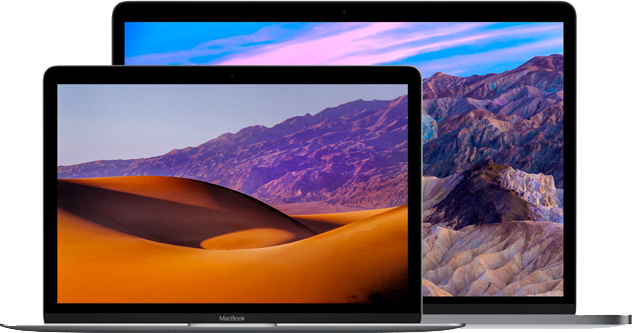
Our team of friendly techies are highly skilled in resolving accident damage Mac problems across the full range of MacBook laptop models, including the MacBook Pro, MacBook Air & MacBook.
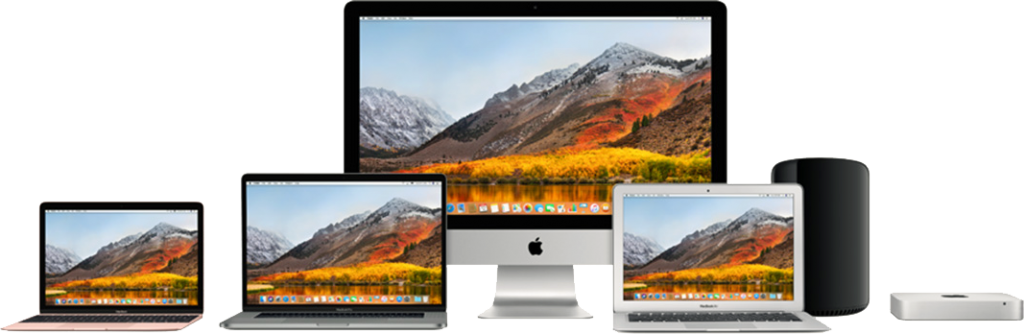
We’re equipped to perform repairs on iMac, MacBook, MacBook Air, MacBook Pro and Mac Mini, ensuring we can meet all your Apple-related needs.
It’s clear that your Mac is an essential tool, whether you’re a small to medium business, a home worker, a freelancer or a private individual. That’s why we pride ourselves on providing fast and efficient service that minimises disruption to your work or play.
We fix any problem
We repair all models
Experience & Reliability
Our team has over 30 years of experience in the industry and has worked with a wide range of Apple products. This gives us the expertise needed to quickly diagnose and fix any issue you may be experiencing. We aim to get your device back up & running as quickly as possible, without compromising on the quality of service.
We offer a wide range of services, including Mac repairs, data recovery, and refurbished Mac sales.
All problems resolved reliably & affordably
Mac Repair London specialise in resolving problems with MacBook laptops, including accident damage and other issues. Whatever the problem, we have the tools and expertise needed to resolve it quickly and effectively.
Contact us today to see how we can help you with your Apple-related needs. Our genuine Apple Support Specialists are ready and waiting to help you get back to using your Mac with confidence!
Certified Apple Expertise
Mac Repair London: London’s Independent Apple Specialists are a professional team of qualified technicians ready to help & support home workers, freelancers, small businesses & all Mac users throughout London.
We are experts in resolving software problems or hardware issues on all recent Apple computers: desktops or laptops. At any rate, we’re also specialists in data recovery to recover your missing data effectively and affordably.
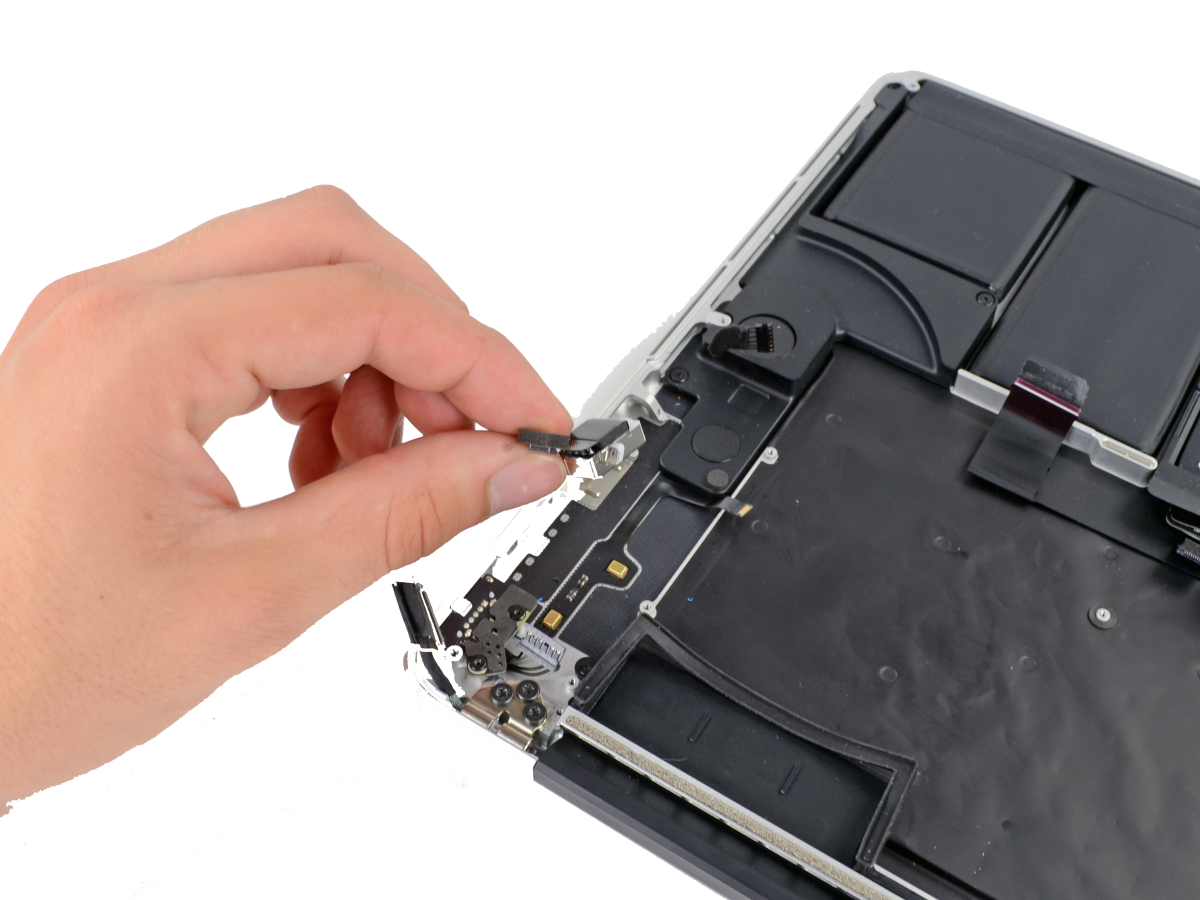
MacBook Screen Repair & Battery Replacement
Your local Mac experts are ready to assist you today:
Call 07010 033 622 now or send a message with your specific requirements, and rest assured, we’ll be glad to help you.
Our fully experienced engineers utilise the latest skills with professional hardware diagnostic tools and software utilities to ensure a fast, accurate fault diagnosis, a service we pride ourselves on providing for free.
You’ll save money before any repair is undertaken. We offer a free diagnostic inspection ahead of our Apple computer maintenance and upgrade services at our North London workshop.
Hence we focus our service on the freelancer, home worker, and small office Mac user while supporting local businesses.
Apple Support Specialists with over 3 decades of experience
We are one of only a few respected Apple Support Specialists in London who have the knowledge and skills to solve Mac problems successfully and quickly the first time.
Our certified technicians go through extensive training to stay current on the latest Apple technologies and troubleshooting procedures.
We ensure that your Mac is in capable hands with our knowledge, providing effective solutions that minimise downtime and maximise productivity.
Consequently our team are prepared to solve any problem that may develop, whether it be hardware or software. We have the skills to get your Mac back up and operating efficiently, from repairing defective components to addressing software issues.
Advanced Skills – Inexpensive Pricing
Rest assured that our goal is to give you with a smooth experience and a fully operating Mac that fits your requirements.
Our trained support staff can repair any MacBook laptop model that has been damaged in an accident, including the MacBook Pro and MacBook Air.
With this in mind we provide advanced skills in repairing and restoring your MacBook to its original condition, whether it has a cracked screen, water damage, or any other physical damage.
For this purpose we recognise the value of your technology and endeavour to provide timely and dependable service to get you back up and running as soon as possible.
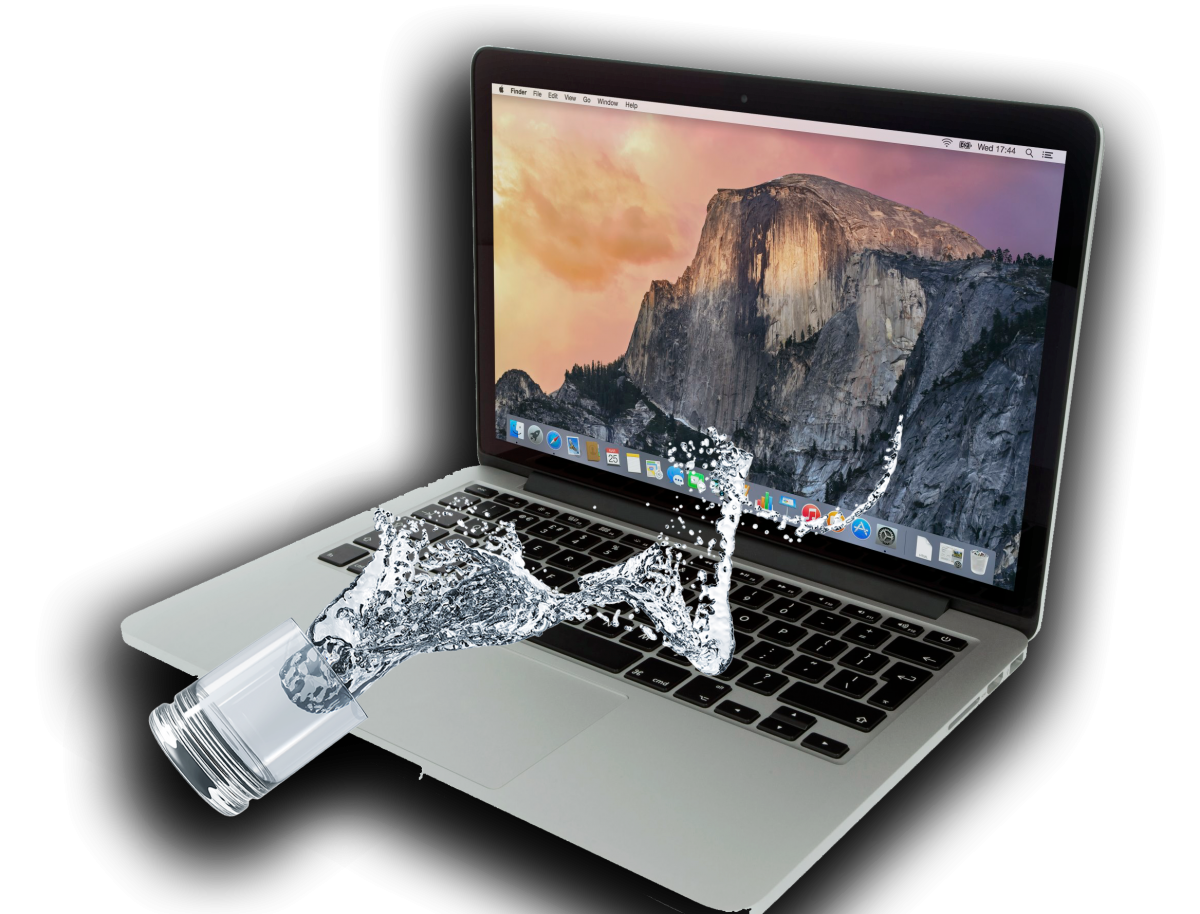
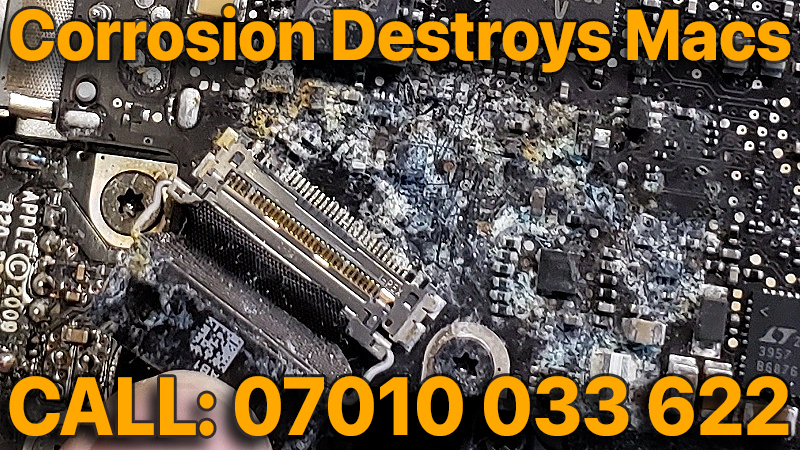
A Mac Liquid Damage Repair service that is both highly successful & affordable
Mac Repair London is prepared to handle any accident-related difficulties, such as liquid damage, a cracked screen, or a broken keyboard.
We have the tools needed and knowledge to analyse the degree of the damage and propose effective solutions.
Our professionals are skilled to identify and repair a wide range of problems, restoring your MacBook to full operation.
Rest assured that you are our priority, and we strive to exceed your expectations with our professional repair services.
We’ll restore your Mac and save your pocket
Your Mac will be quickly restored to full functionality thanks to our considerable knowledge and availability to original Apple parts.
A Mac is important to your everyday life and we work hard to minimise any disruption caused by its failure.
Trust us to produce dependable and long-lasting solutions that will get your Mac up and running in no time.
Why Choose Mac Repair London?
- We’re Apple Professionals with over 30 years of experience.
- We’re a local, English-speaking, family-run service.
- Immediate / Same Day / Next Day Appointments
- No fuss, completely free diagnosis.
- Our dedicated expert team provides the best Apple repair & Mac support service.
- Fast, reliable service: Usually with a super-fast 24hr turnaround
- Genuine Apple parts unless otherwise requested or specified. See us on Setmore
- We only perform a repair with your pre-approval.
- We serve the London area & the home counties.
- We support all recent models of non-warranty Macs.
- Bespoke maintenance contracts are available for small to medium businesses.
- Covering Camden, Islington, Hampstead, Kings Cross, Archway, Finchley & Muswell Hill
- Please send a message or book an appointment now?
Mac Repair London | Apple Support Specialists
Our Services Include:
- Free Diagnostic Inspection Service
Genuine, new or refurbished Apple parts fitted - Fast Turnaround:
Same day or overnight – often within 24 to 48 hours (Subject to parts availability) - Non-Warranty Services and Repairs
Free Diagnostic & Fixed-fee Quotation for Non-Warranty Repairs & Upgrades - Apple Mac Data Health Checks & Spring Clean
Low-Cost Data Health Checks & System Spring Clean, Full Servicing for Internal Components - Apple Mac Data Recovery Services
Data Recovery, Data Optimisation & Data Cloning - Hard Drive, SSD and RAM Upgrades
Affordable RAM & Solid State Drive Upgrade Solutions - Local Collection Service Available
Call our team to arrange

Website & SEO by NorthLondonSEO – Partners with MacEmergency | AMRL | LMR | NLMS | AMDR | MRL | FIXAMAC | NLAR | AA | IR | ARL | IRL